> ## Documentation Index
> Fetch the complete documentation index at: https://docs.cisdmodel.com/llms.txt
> Use this file to discover all available pages before exploring further.
# Alert Settings
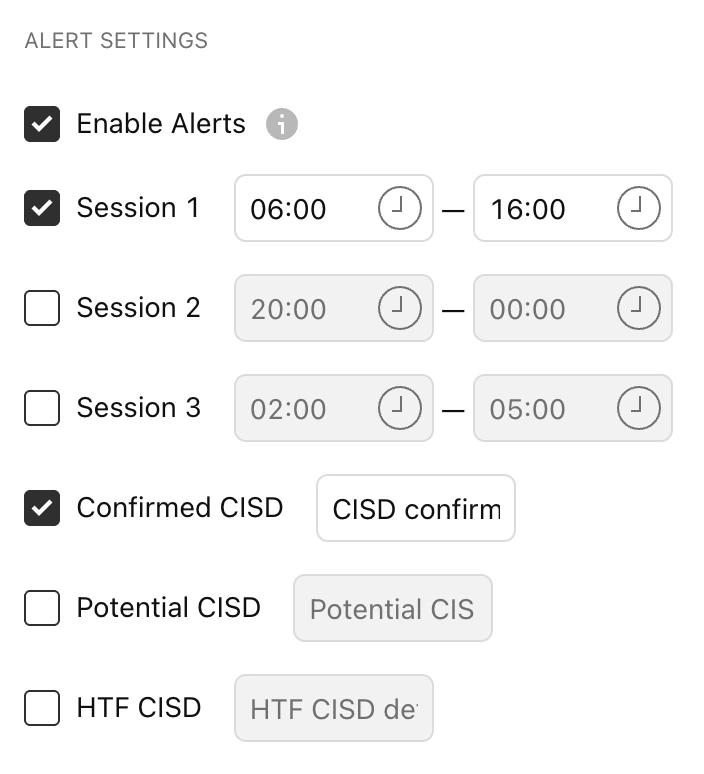 ### Enable Alerts
Keep this setting **ON** if you plan to use the Alerts feature with this indicator.
Remember, keeping this **ON** does not mean you automatically receive alerts. You still need to set up the alerts separately (see below).
## Creating Alerts
### Step 1:
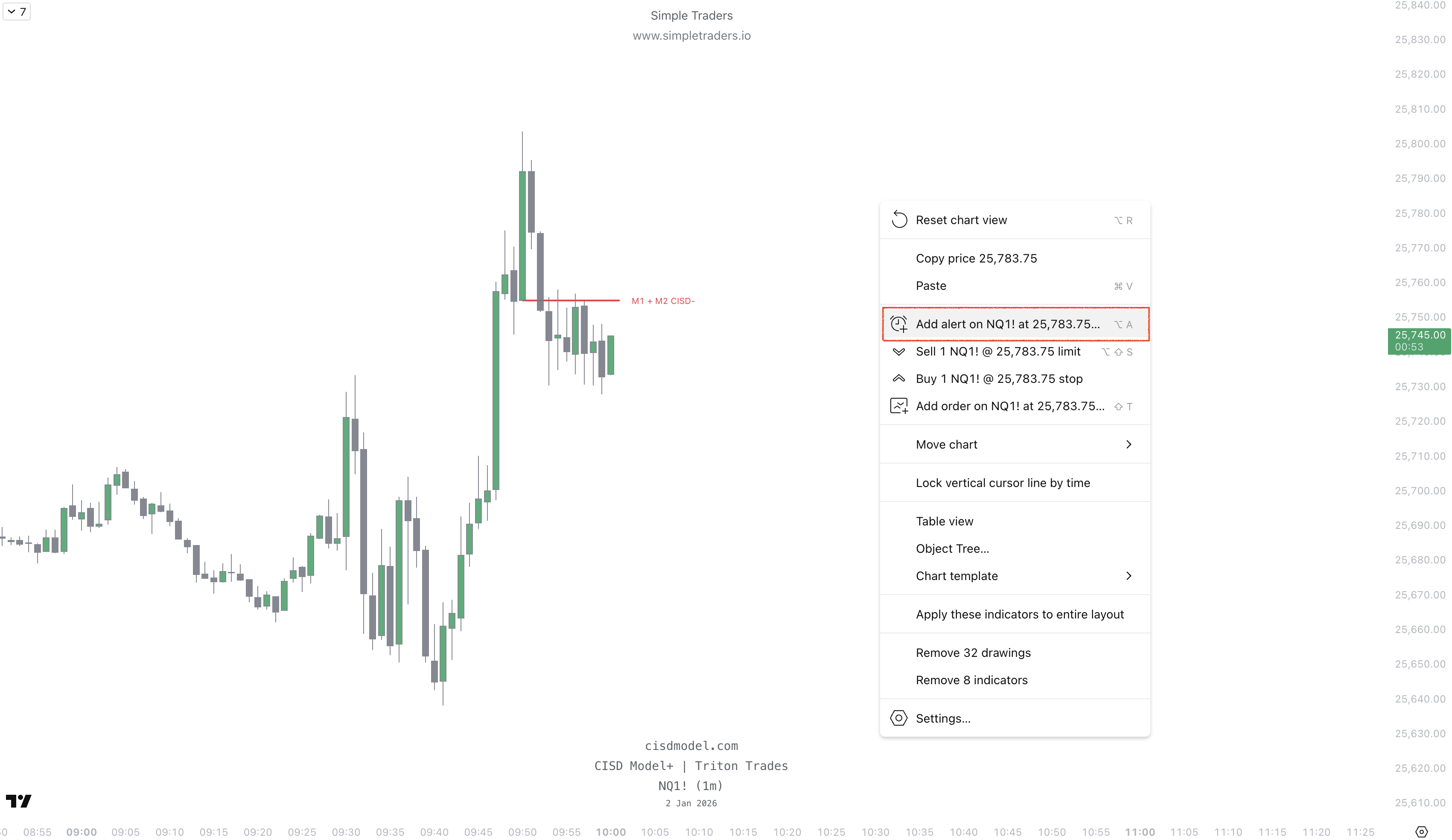
Right-click anywhere on the chart, and click "**Add Alert.**"
### Enable Alerts
Keep this setting **ON** if you plan to use the Alerts feature with this indicator.
Remember, keeping this **ON** does not mean you automatically receive alerts. You still need to set up the alerts separately (see below).
## Creating Alerts
### Step 1:
Right-click anywhere on the chart, and click "**Add Alert.**"
 ### Step 2:
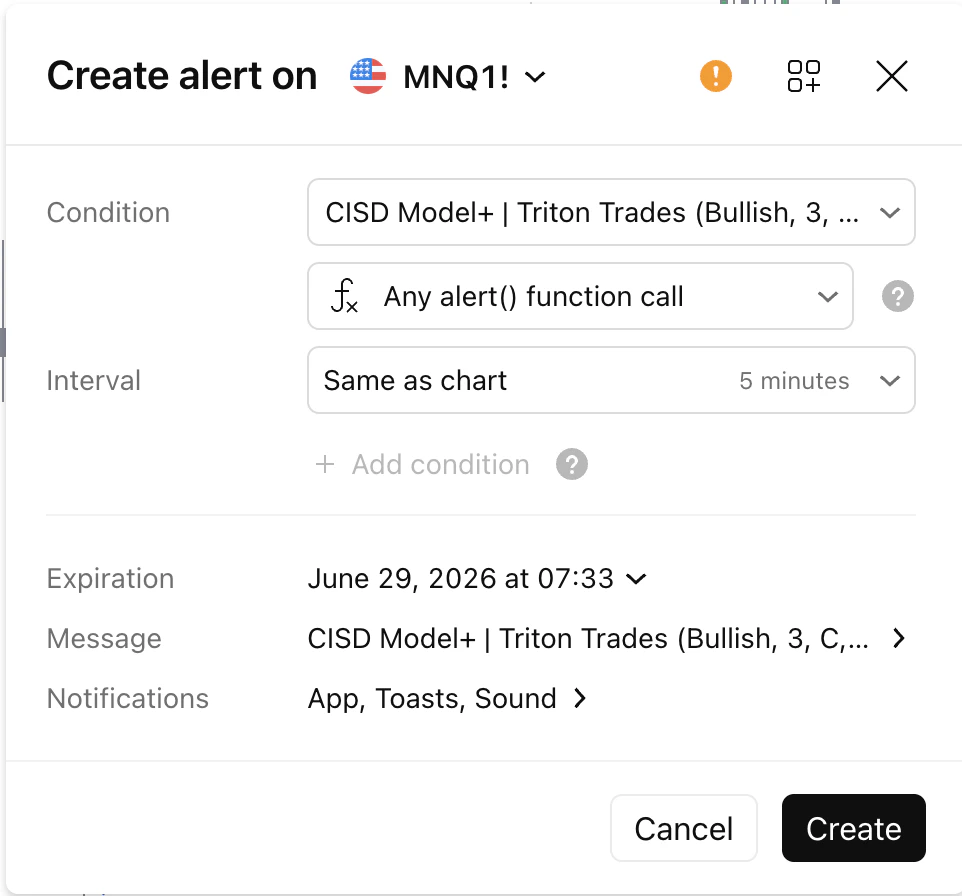
Under "Condition", select CISD Model+
### Step 2:
Under "Condition", select CISD Model+
 ### Step 3:
Select your parameters, such as Bullish or Bearish CISD formed.\
Then select the Interval (timeframe) the indicator uses for alerts.\
For example, if you choose 1 minute, it will only alert you to CISDs on the 1-minute.
Once done, click **Create**. Your alert is ready and functioning!
### Step 3:
Select your parameters, such as Bullish or Bearish CISD formed.\
Then select the Interval (timeframe) the indicator uses for alerts.\
For example, if you choose 1 minute, it will only alert you to CISDs on the 1-minute.
Once done, click **Create**. Your alert is ready and functioning!